Know Your Notes! helps you learn the notes on your bass’s fretboard through short, interactive games. Practice finding notes and recognizing patterns on screen, see your progress, and build the confidence to use what you learn on your bass.
Already playing? Bring your progress and settings with you.
Your player profile
What should we call you?
Put your name on your Custom Shop and your Top Shreds.
Your stage name · Up to 12 characters.
1 · Know The Neck
Four strings. A world of notes.
In portrait, the low string is on the left and the high string on the right. Open strings are E–A–D–G; frets run down to fret 12.
Play your way. Choose Automatic, Vertical, or Horizontal in Custom Shop. Start with the layout that feels comfortable; How to Play explains each option.
2 · Find One Note
See a note. Find its home.
Read the prompt, then tap a position or choose a note name. The feedback helps connect the name to its place on the neck.
A mistake is a chance to look again. Accuracy first. Speed comes with familiarity.
3 · Learn The Gaps
Small gaps. Big difference.
B–C and E–F are one fret apart. The other neighboring natural notes are two frets apart, including G–A.
If you know the natural notes on the neck, you’re only a half-step away from an accidental (♯ or ♭).
4 · Meet The Wrong Note
A wrong step? He’ll let you know.
Meet The Wrong Note. Pick a wrong note or take a wrong step and, in most games, he’ll pop up to let you know.
No worries — take another look and try again. He’s here to help you learn, one note at a time.
5 · Time To Play
Different games. One familiar neck.
Find a note, spell a word, ride the Crazy Train or build a wall. Each Single gives you another way to practice.
Start with one game you enjoy. Can’t get enough of a game? Tap the tape icon to add it to your Mix Tape.
6 · Watch The Demos
See it played first.
The Wrong Note is here to help, too. Tap Play With Me beside Play the Game and let him show you how it’s done.
Play, pause or step through at your own pace. Demos show the game without changing your scores or confidence.
7 · Track Your Progress
Watch the neck become familiar.
Master of 12 Frets shows how familiar each note position feels: Practicing, Progressing or Mastering. Notes you haven’t practiced yet start gray.
Top Shreds compares today’s scores with your personal bests. Choose Touch or Live to track each separately. Colors show Practicing, Progressing, and Mastering. Return to a favorite game and see how far you’ve come.
8 · Build Your Career
From bedroom to main stage.
Build career points through Touch game results and note mastery. Climb ten stages from Bedroom Bassist to Bass God.
Earn badges and unlock new looks and features. Tap the badge to explore it.
9 · Bring Your Vibe
It’s Your Bass.
Your career unlocks new gear. Custom Shop is where you make it yours. Choose your sound, fretboard and inlays, then explore new looks as you climb the ranks.
Mix your favorite finishes, choose Clean or Dirty, and light up your look with Stage Lights. Make it unmistakably yours.
10 · Practice With Purpose
A few minutes. A few more notes.
Play a Single for a quick round, or choose a session in Playlist Manager. Save your favorite games in a Mix Tape to come back to them.
A break between lessons or a quiet moment at home is enough to start. Complete a round and come back tomorrow.
11 · Play Your Bass
From knowing to playing.
Live play opens at the Soundcheck career stage, or with a Student or Teacher Pass. Use your bass in supported games, with a short tour to help you get ready. Find it: play a note you just practiced. Connect it: find it elsewhere on the neck.
Make music: use those notes in a riff, melody or song. The screen is practice for the strings.
Your next step · Custom Shop
Let’s set up your gear.
Choose the neck and sound that make you want to play. You can change them any time in Custom Shop.
Then open Singles, choose a game, watch its demo if you’d like, and find your first note.
Pluck one open string. Let it ring and mute the others. Choose Auto or select a string.
Know Your Notes!BASS EDITION
—
Pluck one open string
Standard tuning · A440
FlatIn tuneSharp
INPUT
Off
30 Hz · Sound spectrum · 5.5 kHz
Mute your strings during calibration. Auto-Calibrate sets the background threshold; sensitivity controls how strongly you listen.
Pluck normally. Aim for green peaks and little activity with the strings muted. More sensitivity also boosts noise.
Microphone off
Microphone audio stays on this device and is not saved. Listening stops when you leave.
Reset all data?
This will clear confidence, scores, streaks, Playlist Manager settings, Custom Shop choices, today’s progress, saved student records, assignments and assignment results. Back up anything you want to keep first. This cannot be undone.
Assignments
An active Student Pass lets you import and play assignments. Saved results remain available to view and export after your pass expires. Practice your teacher’s playlist with locked settings, including Touch or Live Bass for each drill. Complete every drill to finish an attempt. Repeating or restarting begins the whole playlist. Pause keeps your place during this visit. Stopping or reloading leaves the attempt incomplete. Your regular scores and confidence stay unchanged. Export this assignment’s results or your full student data to share with your teacher.
Student Review
Student progress is read-only · Your settings stay unchanged.
Assignments
Active assignments have not been marked complete. Export locks the drill settings; copy an assignment to make a new draft.
Student-reported Results
Reported practice results do not change your manual completion confirmation.
New Assignment
Add a drill, choose Touch or Live Bass, and save its settings. Drag the handles or use the arrows to set the order. Save the assignment before exporting. Practice does not change scores or confidence.
Student Review
Import a student's Custom Shop backup to explore their progress. It stays on this device until you delete it.
Students
Saved on this device. Activity reflects imported files, not live updates.
Access All Areas
Manage your account and passes, or keep using your tester access.
KnowYourNotes™ · ACCESS ALL AREAS
Your Backstage Pass
Use the same KnowYourNotes™ account in Guitar and Bass. Sign-in is optional. Each edition keeps one practice profile on this device. Signing out keeps your progress; switching accounts starts fresh. Export a backup before switching if you want to keep your practice.
Student PassSign in to checkSkill Drills · Assigned practice
Teacher PassSign in to checkSkill Drills · Student review
Confirm your email, then return here to sign in. Passes are checked online. You stay signed in on this device until you sign out. You may need to sign in again if your session expires or you clear app data. Each edition keeps its own practice history.
KnowYourNotes™ · ACCESS ALL AREAS
Tester Pass
Already using a tester pass? Your existing code still works.
Skill Drills enabled
God Mode unlocks all games, looks, inlays, Skill Drills, and teacher and student areas for testing. Your earned rank and scores stay the same. Turning it off locks unearned rewards again and returns any locked gear you’re using to the default.
Custom Shop
Customize the app and manage your progress. Sound and fretboard changes are saved automatically. Use Save Name to update your stage name.
Make it yours
Choose your sound and fretboard, then continue the tour.
Choose the stage name you’ve always wanted. Up to 12 characters.
Know Your Notes!BASS EDITION
POWER
OFFON
SOUND & HAPTICS
CHANNEL
CleanDirty
PRESENCE
Right NotesAll Notes
Power controls note sounds, countdown cues, finishing flourishes and haptics on supported devices. Feel a light tap for a correct answer, a double tap for a wrong answer, and feedback during countdowns and celebrations. Choose a clean or dirty note tone and whether to hear right notes or every note you tap.
Live Lounge
Tune up. Set your sound. Play live.
Each look includes app colors, fretboard wood, finish and inlays. Unlock new looks as you climb the career ranks, then make them truly yours below.
Make It Truly Yours
Your theme sets the wood, finish and inlays. Change any of them to create your perfect look, and preview your bass as you go.
Wood
Finish
Inlays
The fretboard follows your screen’s orientation.
EADG
Frets 1–12 · Live preview
In-game note targets
Hide the faint fretboard rings for a cleaner view while you play. Open-string targets, hints, and highlighted notes stay visible. New to the fretboard? We recommend leaving note targets on while you learn.
Backup & Restore
Make a copy of your progress and Custom Shop settings for another browser or device. Touch and Live progress are included. The backup stays under your control — save it to Files, iCloud Drive, Google Drive, or wherever you prefer.
Diagnostics
Export recent app activity to help us investigate an issue. No microphone audio is recorded.
Reset Data
Clear confidence, scores, streaks, Playlist Manager settings, and today’s progress.
Restore Progress?
Your current progress will be replaced with the selected backup. Saved assignments, results, and student records will be combined without removing existing records.
For Those About to Rock!
How to play: learn the neck, try a note, then put it into play.
Available Tours
Replay tours here whenever you need a refresher. Check back as you unlock features—more tours become available along the way.
Try to avoid the Wrong Note!
In most games, a wrong answer brings him out in a red flash. No worries — look at the note, learn from it, and try again.
Try a right and a wrong answer in the demos below. Each game explains its own challenge and feedback.
1 · Know The Neck
In portrait, the low string is on the left, the high string on the right. Frets run down the screen.
Play your way
Choose Automatic, Vertical, or Horizontal in Custom Shop. In the iOS app, Automatic follows your device during play, Vertical stays in portrait, and Horizontal opens in landscape. Gameplay and confidence replay return to portrait when they finish.
In the horizontal layout, open strings are on the left, fret 12 is on the right, high G is at the top and low E is at the bottom. In a browser, rotate your device to change the screen orientation; the selected fretboard layout still applies.
Across the top: strings 4 → 1 Open strings are E–A–D–G.
Row 0: open strings No finger on a fret.
Numbers down the side: frets The thick line is the nut. Below it, each row is one fret.
The highlighted A String 4, fret 5. Follow the string down from open E. This close-up shows frets 0–5; the game neck continues to fret 12.
2 · Find One Note
Find A on string 4. Read the prompt, choose a position, then check the feedback.
Try a wrong position first, then find A. This practice has no timer, penalties or saved score.
Start at the open E on the left and work down the string.
3 · Learn The Gaps
Natural notes are A–B–C–D–E–F–G. B–C and E–F are one fret apart. Every other neighboring pair is two frets apart.
If you know the natural notes on the neck, you’re only a half-step away from an accidental (♯ or ♭).
The sequence wraps from G to A, or A to G going backwards.
Follow the natural notes up or down the active string, starting open or at fret 12. Complete four string sequences: two ascending and two descending. Each miss adds one second to your final time.
This demo follows open E up to fret 12 on string 4. Each new sequence starts fresh.
Every game and Skill Drill has playback controls. Scroll up while playing: Restart for a fresh attempt, Pause to freeze play and timers (press play to resume), or Stop to return to preparation. Stopping or restarting discards unfinished scores and note confidence.
5 · Watch The Demos
Not sure what to do? Tap Play With Me beside Play the Game in any available game. Watch the Wrong Note make his choices, pause, or follow one step at a time. Your scores stay untouched.
Can’t get enough of a game? Tap the tape icon to add it to your Mix Tape.
Try it here · Roundabout
Follow open E up to its octave at fret 12, then A on string 3 down to the open string. Tap below to watch each move on the fretboard.
6 · Track Your Progress
Master of 12 Frets shows your current note confidence. It can rise or fall as you practice. The inner circle shows confidence; the outer ring shows its recent trend. Replay your recent progress to see the changes.
Inner circle · Confidence
Not yet practiced
Practicing
Progressing
Mastering
Outer ring · Trend
Improving
Declining
Inconsistent
Example only · These are not your results. Once Live is available, choose Touch or Live for separate confidence and replay. Translation compares Touch inside with Bass outside; its outer ring shows confidence, not trend. Translation has no replay.
Your career: improve Touch game results and master notes across the neck to build career points. Climb ten stages, earn badges and unlock new looks and features. Earned career rewards stay yours even when current note confidence changes. Live, Skill Drills and assignments do not earn career points.
Top Shreds compares today’s scores with your personal bests. Choose Touch or Live to track each separately. Colors show Practicing, Progressing, and Mastering. In Backstage, explore your career badges and journey; Bass God also has a celebration you can replay.
A Student or Teacher Pass opens Skill Drills in supported games: focus on selected strings or regions without changing regular scores or confidence. Sign in through Access All Areas to check your account passes. Your teacher can also share assignments. Import the drills, follow the assigned Touch or Live settings, and review your results.
Your teacherShares drills
→
Student PassUnlocks Assignments
→
Your practicePlay · Review · Repeat
You can sign in or create an account through Access All Areas. With an active Student Pass, open Backstage → Assignments to import your teacher’s package. Complete the drills, then export your results to share with your teacher. If your pass expires, you can still view and export saved results.
8 · Bring Your Vibe
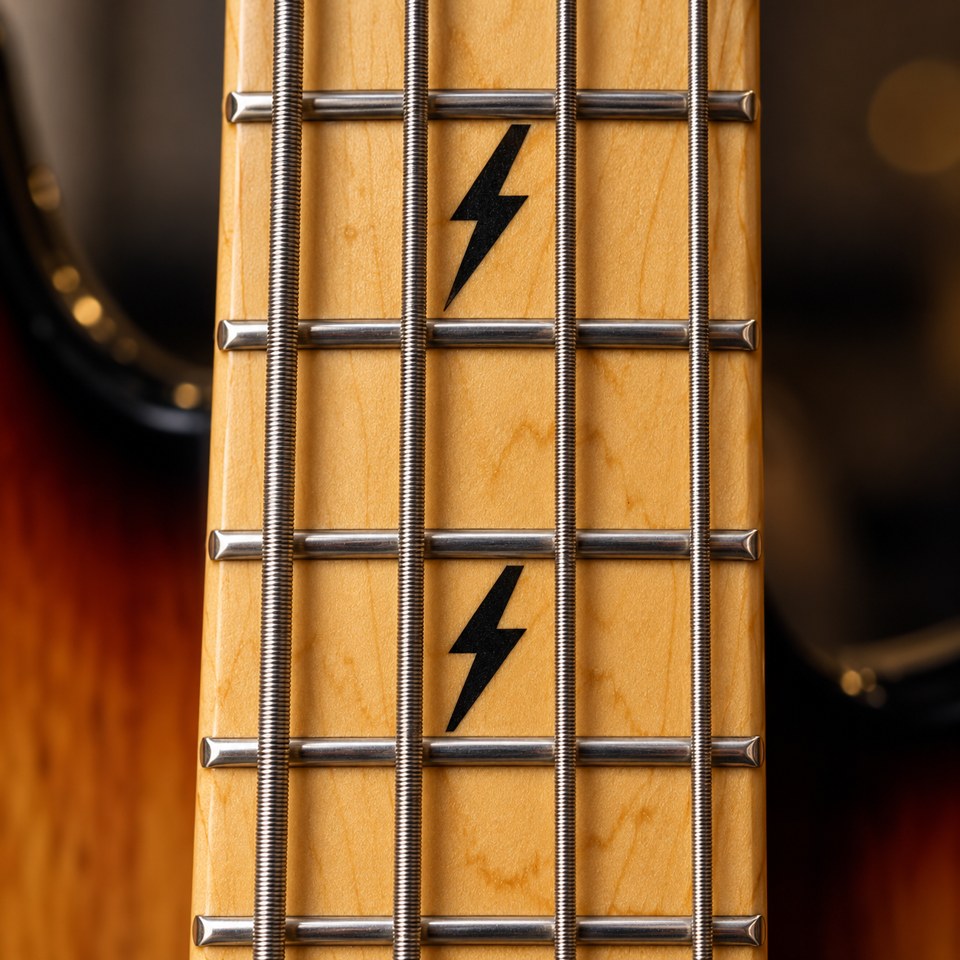
Make the fretboard feel like yours. In the Custom Shop, choose a light Maple or dark Rosewood neck, then pick your favorite inlays: Classic Dots, Lightning, or Classic Trapezoids.
Example: Maple neck with Lightning inlays. These choices only change the look — your games, scores, and progress stay exactly the same.
There’s always time for a little practice. A quiet moment at home, a train journey, a break between lessons — turn it into a few notes you know better.
📱 Phone on the go▤ Tablet on the sofa💻 Computer at your desk
Use the app or your browser on the device you have with you. Touch needs no bass — just a moment to focus.
How much room is there in your day?
Explore a playlist below. Each builds anchors, tests recall, and applies your knowledge. Longer playlists add depth and variety.
Choose your games and order before starting. These session sizes describe Touch playlists and practice time, not difficulty. When Live is available, switch input to see supported games. Touch and Live keep separate Mix Tapes; your chosen input stays the same throughout a playlist.
🔥
Make it a small daily habit
One completed round is a start. Come back tomorrow, build your streak, and watch more of the neck become familiar. Aim for accuracy first; let speed follow.
Use a hint when you need one, then work out why the answer fits. Mix familiar games with a new challenge when you feel ready.
From the screen to the strings
10 · Play Your Bass
The app helps you recognize the notes. Playing them on your bass makes that knowledge useful. Live play opens at the Soundcheck career stage, or with a Student or Teacher Pass.
1 · Find it
Pick a note you just practiced. Find it on your bass and say its name.
2 · Connect it
Find the same note somewhere else, or play the natural notes around it.
3 · Make music
Use those notes in a riff, a melody or a song you’re learning.
Once Live is enabled, tune up in Custom Shop’s Live Lounge, then choose Live in Singles or Playlists to see supported games. The Live Play Tour in Available Tours helps you get ready. Live builds separate confidence and personal bests. Completed Touch or Live games keep your daily streak going. Translation compares confidence as a guide to your practice. Playing speed and microphone recognition can influence Live results. Keep using Touch when your bass isn’t nearby.
Choose a single. Ace of Spades unlocks after you record a score in all 14 games.
Personal Best rating · Top Shreds
NewPracticingProgressingMastering
Watch & learn · No score or penalties
The Wrong Note is your guide here. His correct choices turn green. Demonstrations do not change your scores, streak or confidence.
Can’t get enough of this game? Back on the game page, tap the tape icon to add it to your Mix Tape.
🔥 Streak 0dayBest Streak 0
Rounds Today 0Bedroom Bassist · Rank 1/10
3
Get Ready
For Those About to Rock!
For Those About to Rock!More detail · How to play
The aim The deck has 32 unique string-and-fret positions on your bass. Clear the seven piles of four cards. The other four cards form the stock.
Make your next move Start with any exposed note card—the uncovered one at the bottom of a pile. After that, play the previous or next natural note in the repeating sequence C–D–E–F–G–A–B–C. For example, E accepts D or F; C accepts B or D. The note name decides whether a move is allowed, regardless of its string or octave. Clearing a note card exposes the one behind it.
Stock and waste The waste shows your current note. Tap Draw stock to replace it with a fresh note card when you are stuck, or when you want to change your route. Drawing stock keeps the clock running. You can use the stock only once; it does not refill.
Pick your level L1 · Tap exposed note cards. L2 · Tap exposed positions on the fretboard, with note names shown. L3 · Find those positions without the note names. On the fretboard, solid colored circles are exposed notes, colored outlines are next in their pile, black circles are deeper notes, and gray circles belong to the stock. Only exposed positions can be played. Each card has its own string and fret. Tap an exposed position to play it.
Watch a solution Before or after a round, choose Watch Solution to watch, pause, or step through a winning route for the current deal. Your scores stay unchanged.
Win the round Clear all seven piles to win; unused stock does not matter. If you have no legal moves and the stock is empty, the round ends with notes left. Use Play With Me to step through a winning route from the start of that deal.
Beat your time Clear the piles as quickly as you can. An incorrect choice adds one second and leaves the note in place. Your score = time + 1 second per miss. Lower is better. The clock starts when the deal is ready and stops while paused. Cleared rounds rank above unfinished rounds; among unfinished rounds, fewer notes left is better, then faster time.
Choose Touch or Live, then choose your games. Each input keeps its own Mix Tape. Try a suggested playlist, then customize it if you want. Drag the ⠿ handles or use the arrows to change their order.
Build your rank by mastering the fretboard and improving across the games. Reach Bass God by mastering every natural-note position, all 14 games, and Ace of Spades at Level 3. Game personal bests earn up to 30 points, mastered natural-note positions earn up to 60, and Ace of Spades earns up to 10. Only Touch practice builds your career.
GameTodayPersonal Best
Choose Your Next Note
For Those About to Rock!
Follow the natural notes up or down the active string, starting open or at fret 12. Play the starting note, then each next natural note until you reach the octave. Play each string once: two ascending and two descending sequences. Your next completed round covers the opposite direction on every string, in a shuffled order. Each miss adds a 1-second penalty to your final time.
Mute the other strings. Wait for each note to turn green before moving on. Let any audio feedback finish before playing the next note.
Low string ← 6 5 4 3 2 1 → High string
Behind the notes
Production Notes
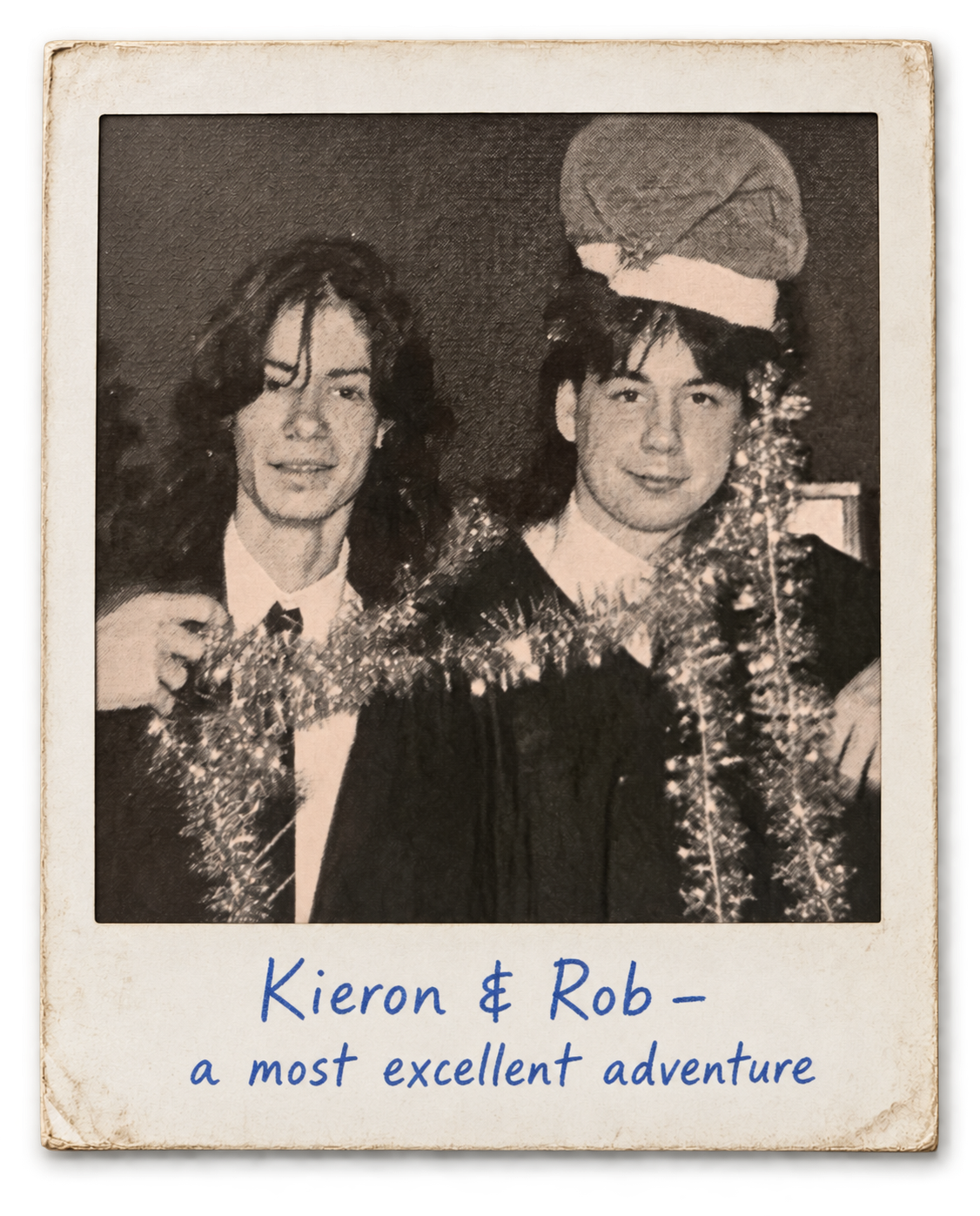
Hello! We’re Robert S Garland, Esquire and Kieron Theodore Connelly*, and together we are Wyld St… oh wait, this isn’t a movie.
But actually, just like Bill and Ted, we grew up together (most would say “not enough”) in a small town in many ways nothing like San Dimas, California (although coincidentally Rob does now live just down the road in LA). And just like Bill and Ted, we learned to play guitar together when we were young, inspired by a love for the kind of music they also loved. Which is why this app is full of musical references to 70s and 80s rock bands. How many did you spot? We counted “69, dude”**.
We wrote this app together because we realized we both needed it, albeit for very different reasons. Kieron needed it because he had somehow managed to get through about 40 years of playing the guitar without ever learning the notes on the neck. Rob needed it because he’s actually gotten so good at knowing the notes on the neck, and all the other things that you could possibly know about guitars, that he became a famous guitar player, author and music teacher, and found that many of his students, even those that had been playing as long as Kieron, still didn’t know the notes either (…or at least that’s what he’s told Kieron to make him feel better).
Bass Edition brings that same practice to four strings. If you love playing bass but want to get a lot better at knowing the notes, this edition is for you. Or we could just get Eddie Van Halen to join the band?
We put together a playlist of music based on all the references we’ve managed to squeeze into this app (and a few we wanted to squeeze in but just haven’t figured out the right pun yet). Open the setlist in Spotify to listen. We would have made you a mix tape, but this isn’t a John Hughes movie either.
If you have any feedback (e.g. “Most Excellent!”, “Bodacious”, “Bogus”, or “What about that gnarly old Goat Dude”), or even just a better pun for a game, you can click the ‘Send your feedback’ button below and we’ll do our best to ignore accommodate it.